Link a Utility Account on MyCCNCPay
Follow the directions below to link a utility account to your MyCCNCPay profile:
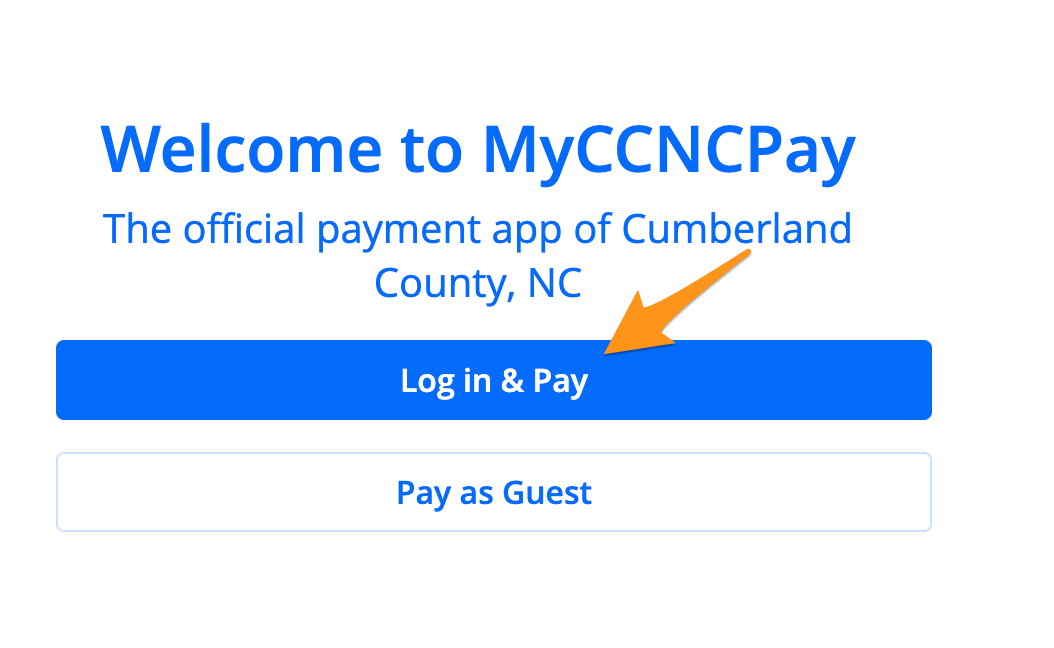
- Visit MyCCNCPay, click Log in & Pay, and sign in (see Create a Profile on MyCCNCPay)
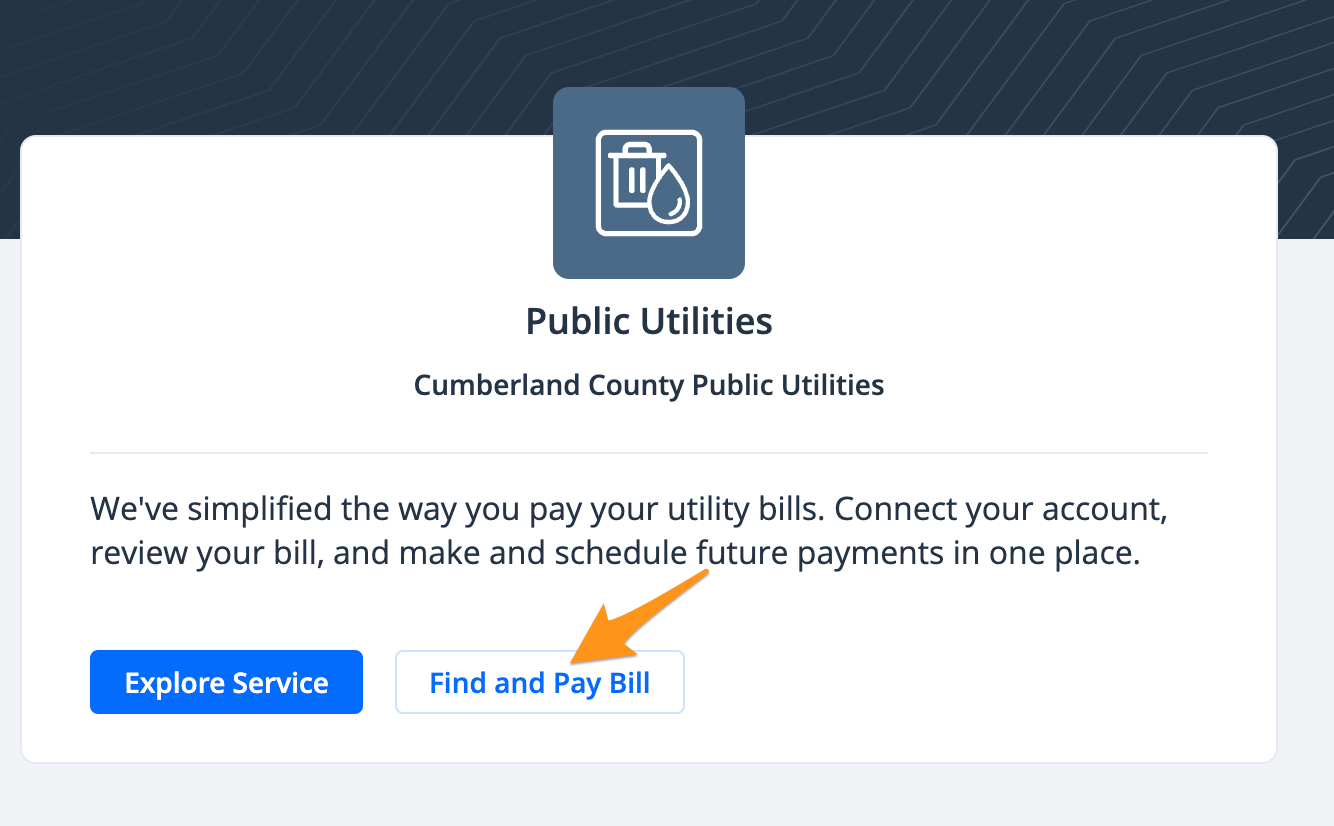
- Under the "Available Services" section, click Find and Pay Bill
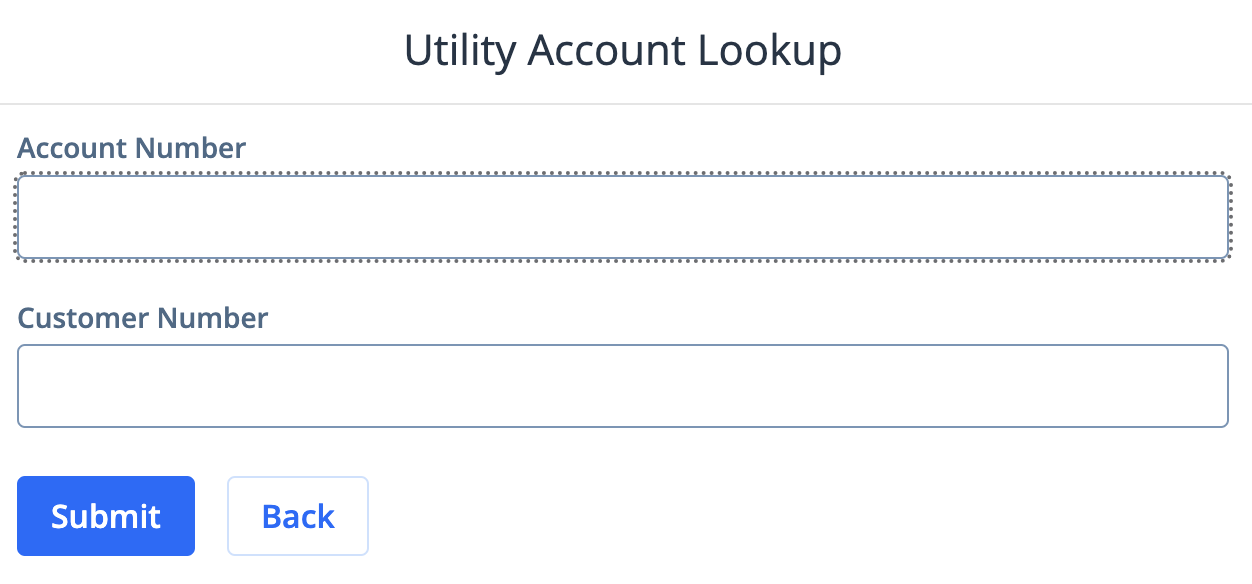
- Enter your account number and customer number in the appropriate fields and click Submit
Note: This is found near the top-middle of your bill
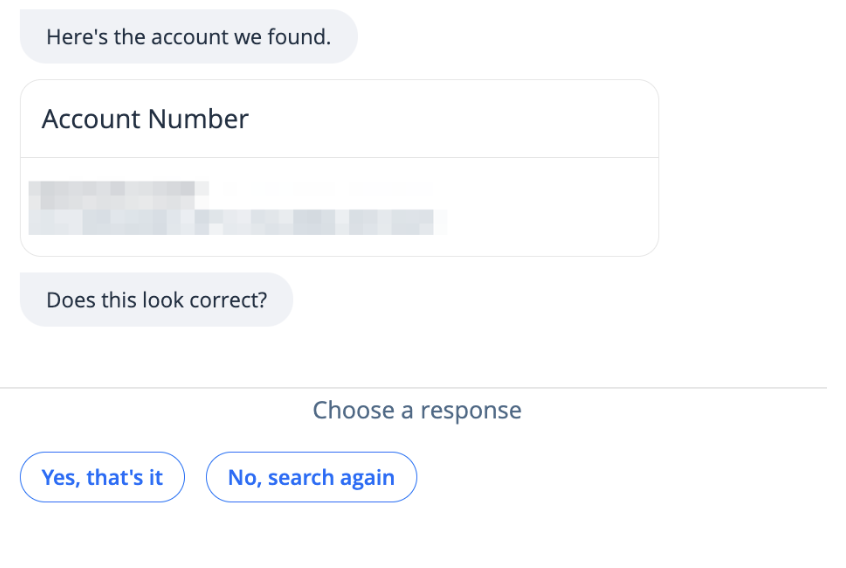
 4. Select Yes, that's it. If the account is not yours, choose No, search again.
Your account is now linked to your MyCCNCPayprofile. New bills and any current balance due will appear on the dashboard after signing in. To complete a utility bill payment (see Pay a Utility Bill on MyCCNCPay).