Enroll in AutoPay on MyCCNCPay
To set up AutoPay for your utility bills, you must first have a MyCCNCPay profile (see Create a Profile on MyCCNCPay). Guest users cannot set up AutoPay at this time.
After signing in and linking your account (see Link a Utility Account on MyCCNCPay), follow the steps below to enroll your utility account in AutoPay:
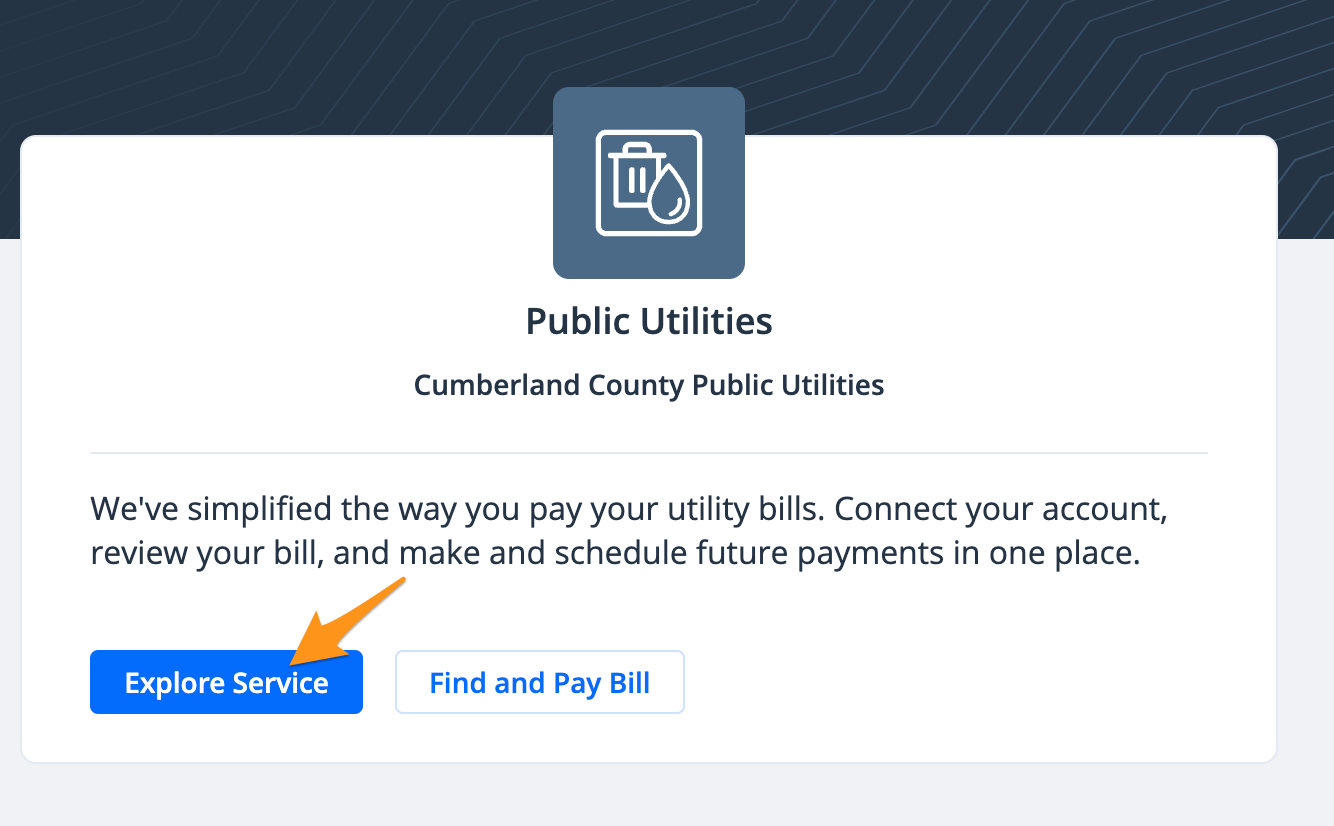
- Click Explore Service
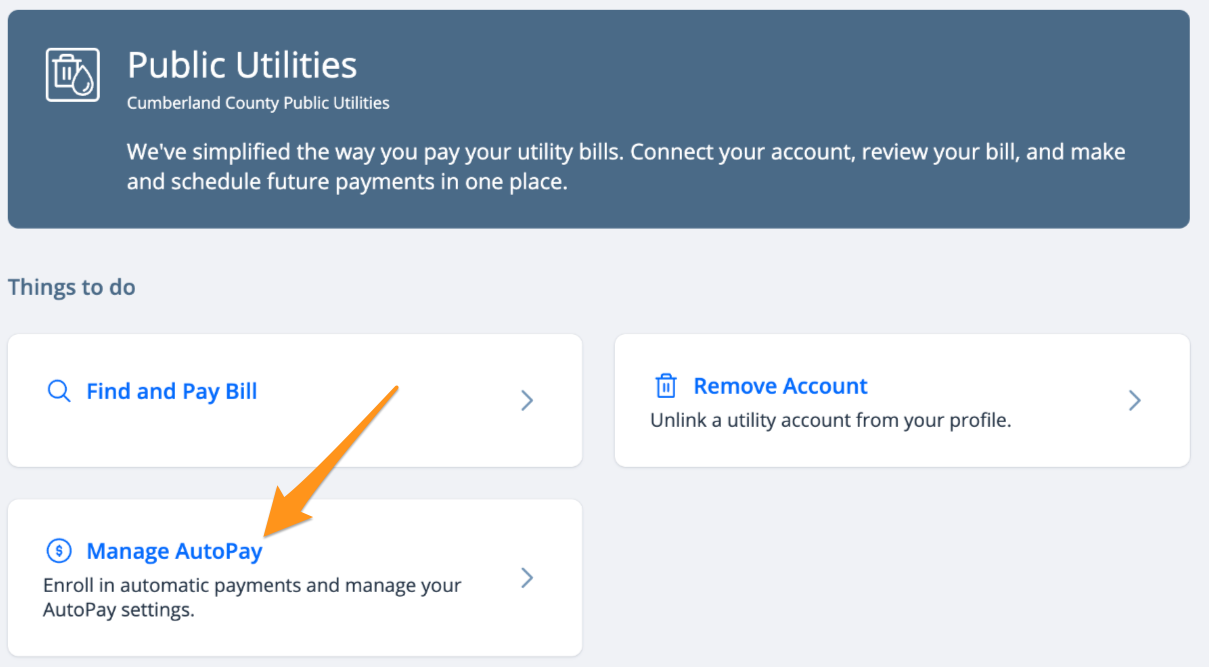
- Select Manage AutoPay
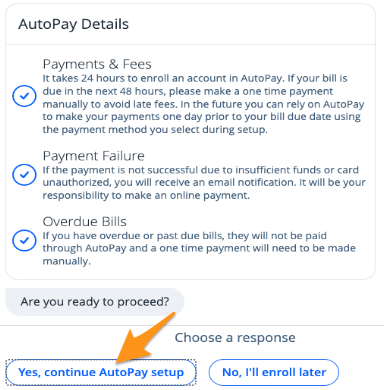
- Review the "AutoPay Details" and click Yes, continue AutoPay setup
- Choose the utility account you wish to enroll then click Submit
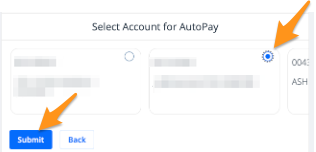
Note: Only one utility account can be chosen at a time. You may enroll multiple accounts by completing steps 1-6 for each utility account.
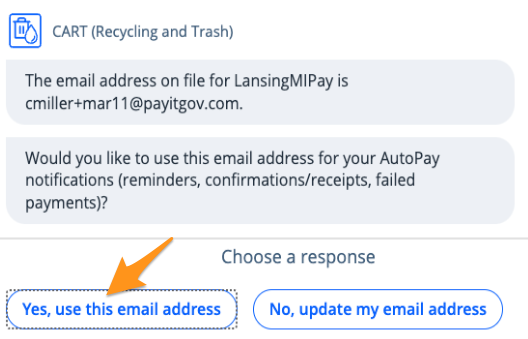
- Confirm the email address associated with your profile by selecting Yes, use this email address
- Next, select a Payment Method and click Submit
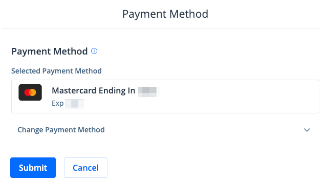
Note: If you already have a payment method stored on your profile, it will appear here. Click Change Payment Method to select a different payment method from your profile or to add a new payment method.
- Review the "AutoPay Enrollment Summary". If everything looks correct, select Yes, complete enrollment. To make a correction select No, change something.
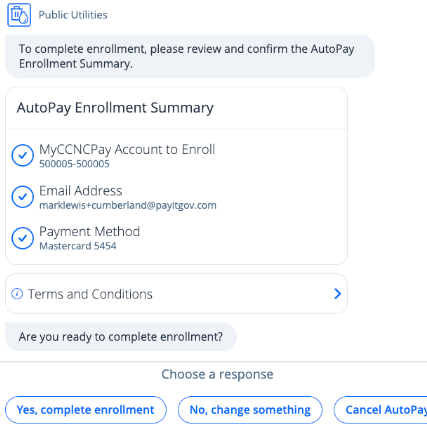
Your account is all set up for automatic payments! You will receive an email confirming the enrollment, and email notifications before and after a payment is processed for each utility bill.