Pay a Utility Bill on MyCCNCPay
After locating your account on MyCCNCPay (see Link a Utility Account on MyCCNCPay), you can complete your payment by following the steps below.
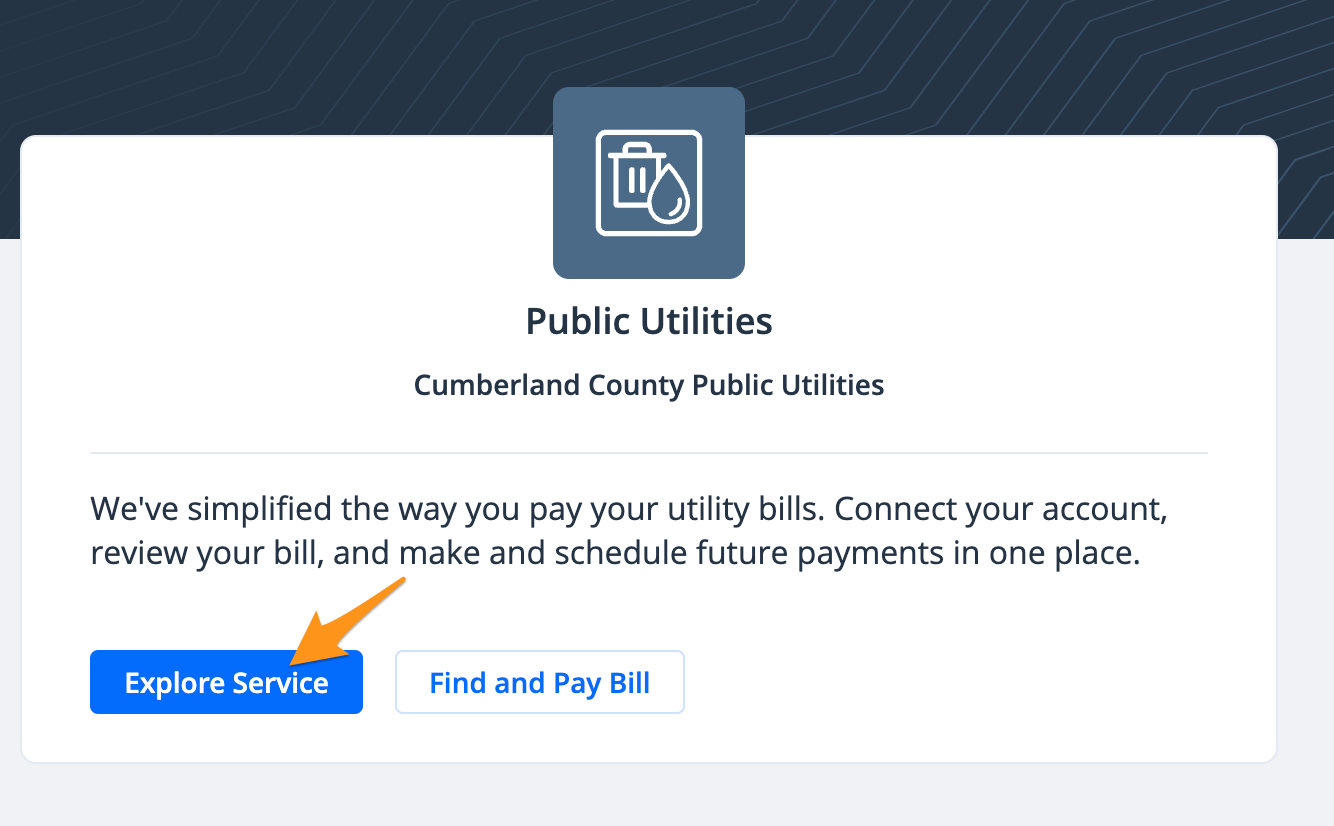
- Click Explore Service under Cumberland County Public Utilities
-
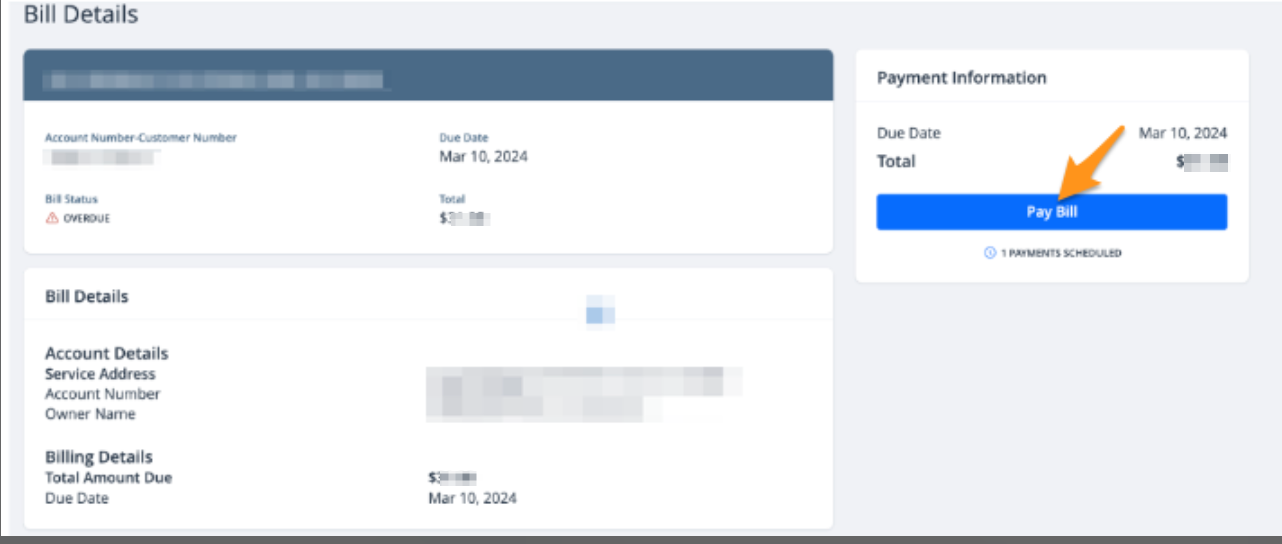
Select the bill you wish to pay and click Pay Bill
-
Click Yes, proceed to payment or select No, return to the dashboard

- Enter your "Contact Information" and click Submit
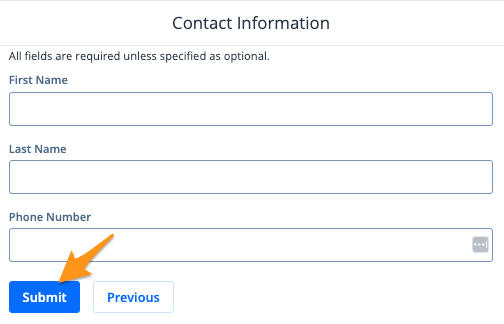
Note: These details are for receipt purposes only and do not need to match the account owner's information.
- Select Go to cart to continue the payment process. You may also select Search for another account, or Return to Dashboard to exit the payment process

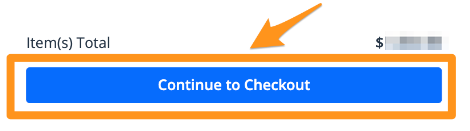
- Click Continue to Checkout
- Select a payment method and a preferred "Payment Date". Then click the blue Pay $--.-- button to complete your payment.
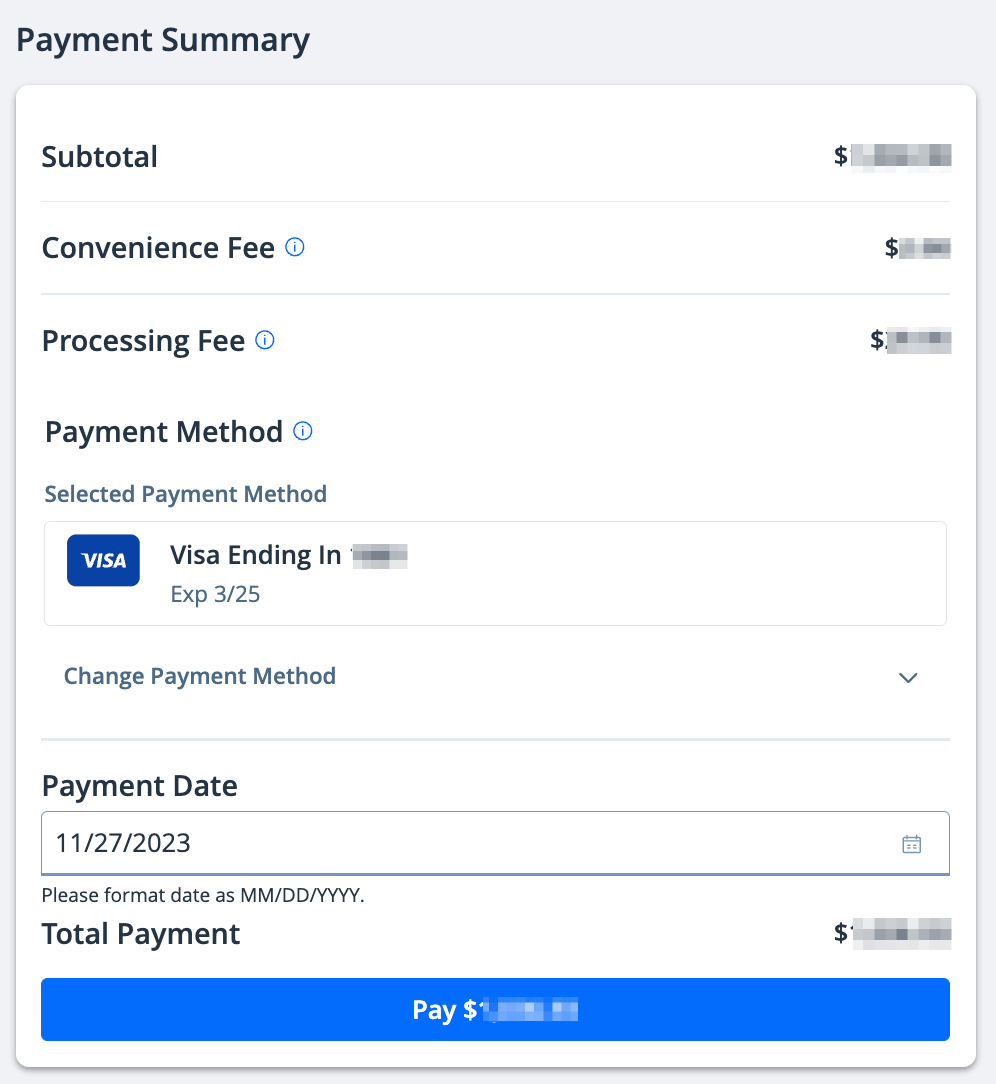
Note: If you have a stored payment method, it will automatically appear here. Click Change Payment Method to select a different stored payment method. If you have not added a payment method before or are proceeding as a guest, select Choose Payment Method to add a credit/debit card or bank account.
After completing your payment, you will receive an email confirmation. If you are signed in, a receipt will also be stored in your profile (see Find a Receipt on MyCCNCPay)